

Step 1: Install the OpenTelemetry packages
Go to the root of your Rails app and add the basic OpenTelemetry SDK, OTLP exporter and instrumentation gems to your Gemfile:Terminal
Gemfile
Step 2: Initialize the instrumentation
As per the Ruby on Rails convention, we add aninstrumentation.rb file to the config/initializers directory.
config/initializers/instrumentation.rb
ChecklySampler configuration. This is a custom, head-based sampler that will only sample spans that
are generated by Checkly by inspecting the trace state. This way you only pay for the egress traffic generated by Checkly
and not for any other traffic. Also note that the use_all() method will automatically install all available
instrumentation libraries.
Step 3: Start your app with the instrumentation
Toggle on Import Traces and grab your OTel API key in the OTel API keys section of the Traces page in the Checkly app and take a note of the endpoint for the region you want to use.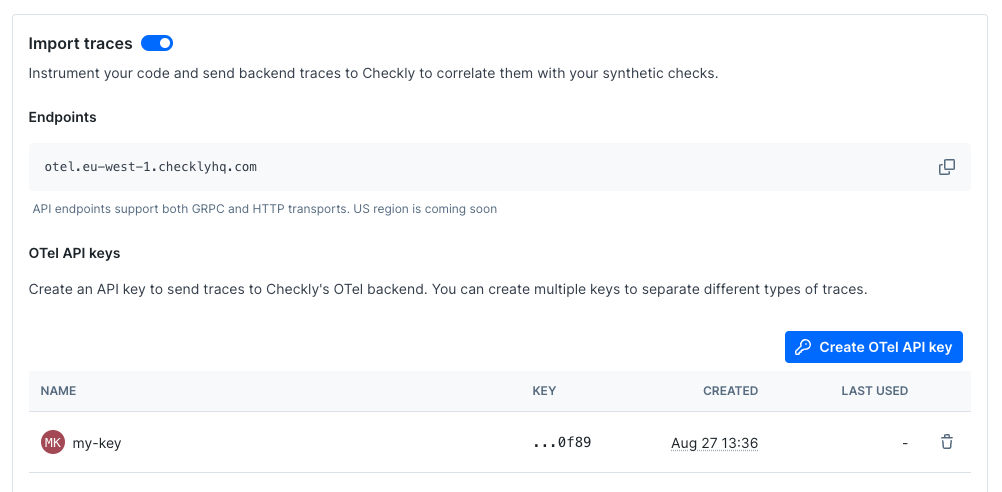
OTEL_EXPORTER_OTLP_HEADERS environment variable.
Terminal
Terminal
Terminal
You can now restart your Rails app with the instrumentation enabled.
Terminal
Debugging and troubleshooting
If you run into any issues, you can also output any traces to the console as follows:Terminal
OTEL_LOG_LEVEL environment variable to DEBUG to get more detailed logs.
Terminal